SheetGen
Batch create Sheets and Placeholder sheets, place Views on Sheets based on a pre-defined template, and easily manage Drawing Sheets revisions. Export sheets/views lists to/from Excel.
Table of contents
Placeholder Sheets
The Placeholder Sheets tab allows you to create, edit and manage Revit placeholder sheets using a workflow similar to the Sheet List tab.
The existing placeholder sheets will be displayed in the main table at startup, where you can easily duplicate them, create new ones, and batch rename/renumber them. You can also select what parameters you want to view and edit in the main table, and you can export/import the table to/from Excel to more easily fill in the parameter values.
All changes will be staged and will only be updated to the model when clicking Apply.
# Note:
The Placeholder Sheets tab is available for premium users only.
New Placeholder Sheet
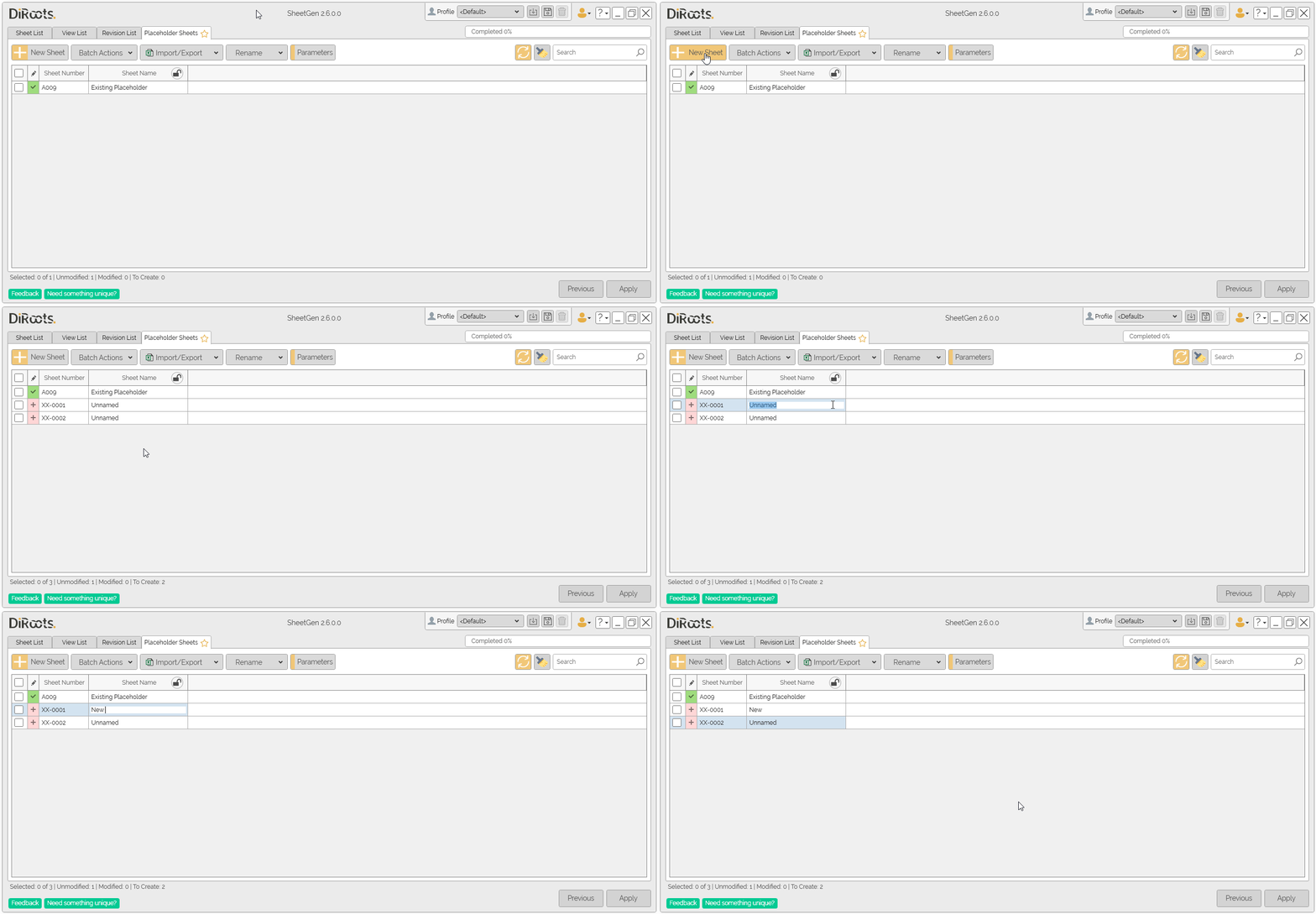
- Click New Sheet.
- A new placeholder sheet appears in the list with a “to create” state.
Edit Sheet Number, Sheet Name and Parameters
- Double-click the cell.
- Type the new value and confirm.
# Note:
If the Sheet Name header shows a lock icon, toggle it to lock/unlock editing for that column.
 Note: the version on the image may not reflect the latest version of SheetGen/DiRootsOne.
Add Parameter Columns
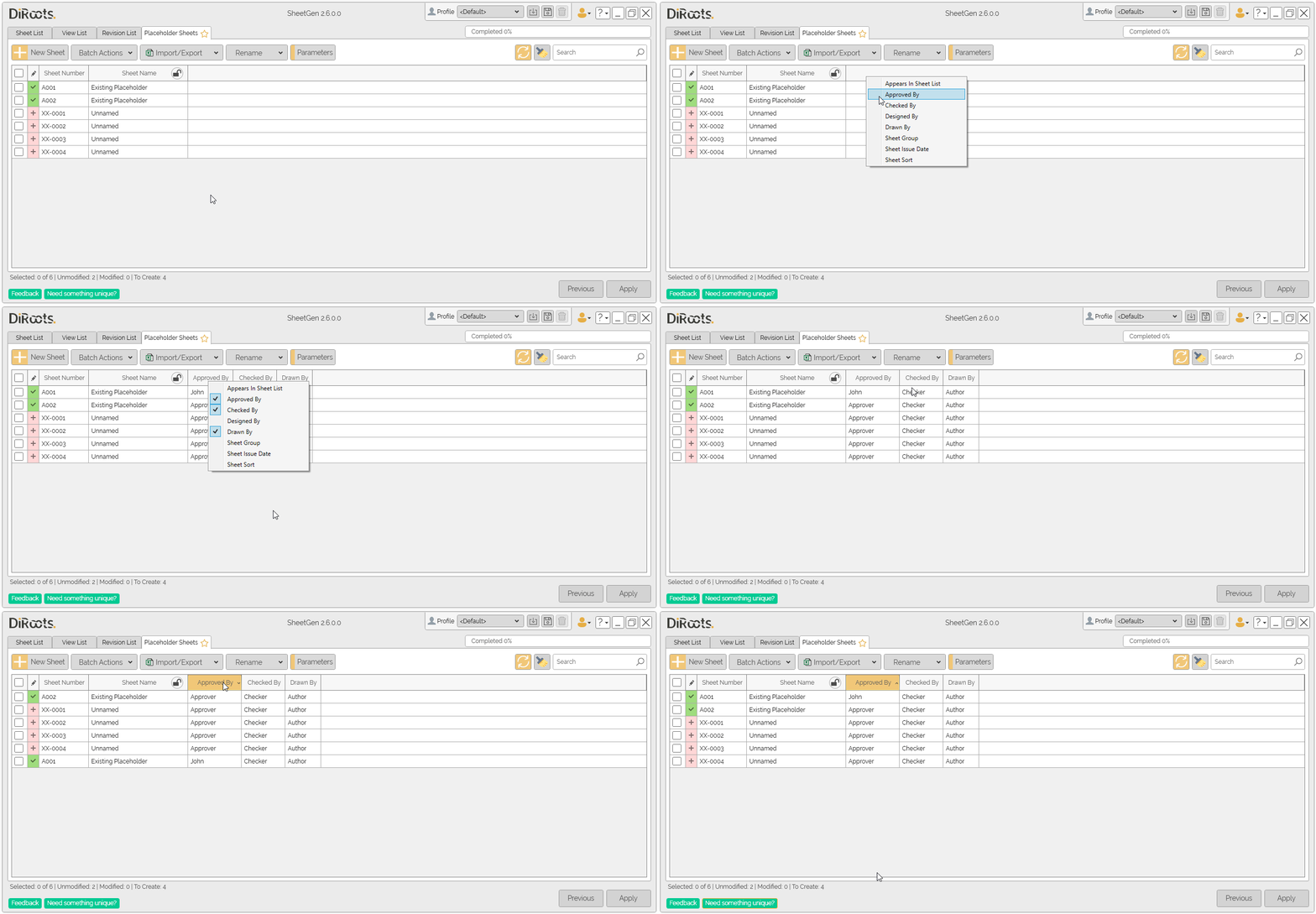
By default, the table only shows the number and name of the sheet, but you can add more columns corresponding to Parameters of the placeholder sheets.
Headers Context Menu
The quickest way to add or remove columns is to right-click under the column header and use the context menu to add or remove the desired parameters.
 Note: the version on the image may not reflect the latest version of SheetGen/DiRootsOne.
Parameters Window
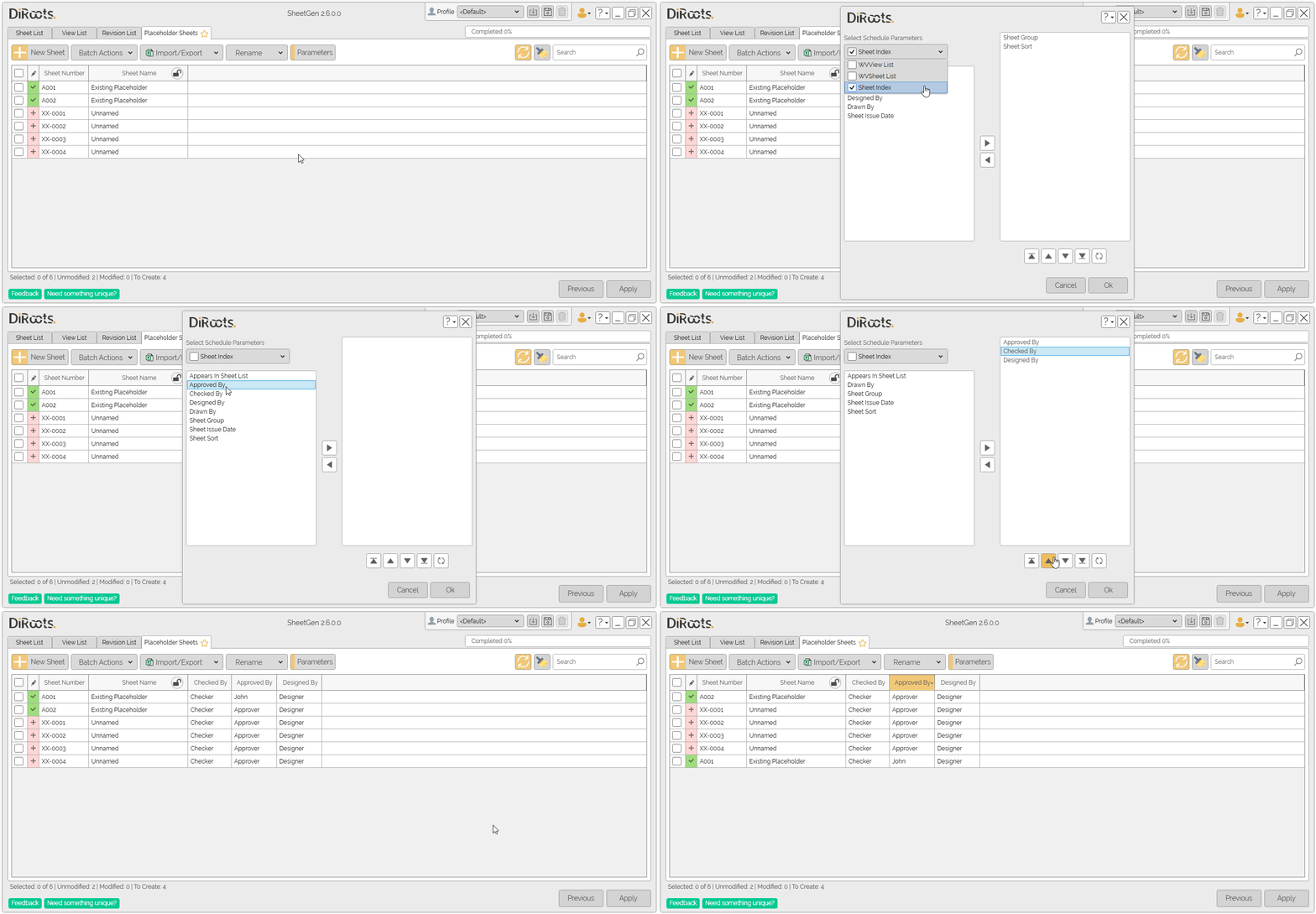
Clicking the Parameters button will open a window that allows you to select parameters from the list, or match the parameters from a schedule.
 Note: the version on the image may not reflect the latest version of SheetGen/DiRootsOne.
Actions
Duplicate Placeholder Sheets
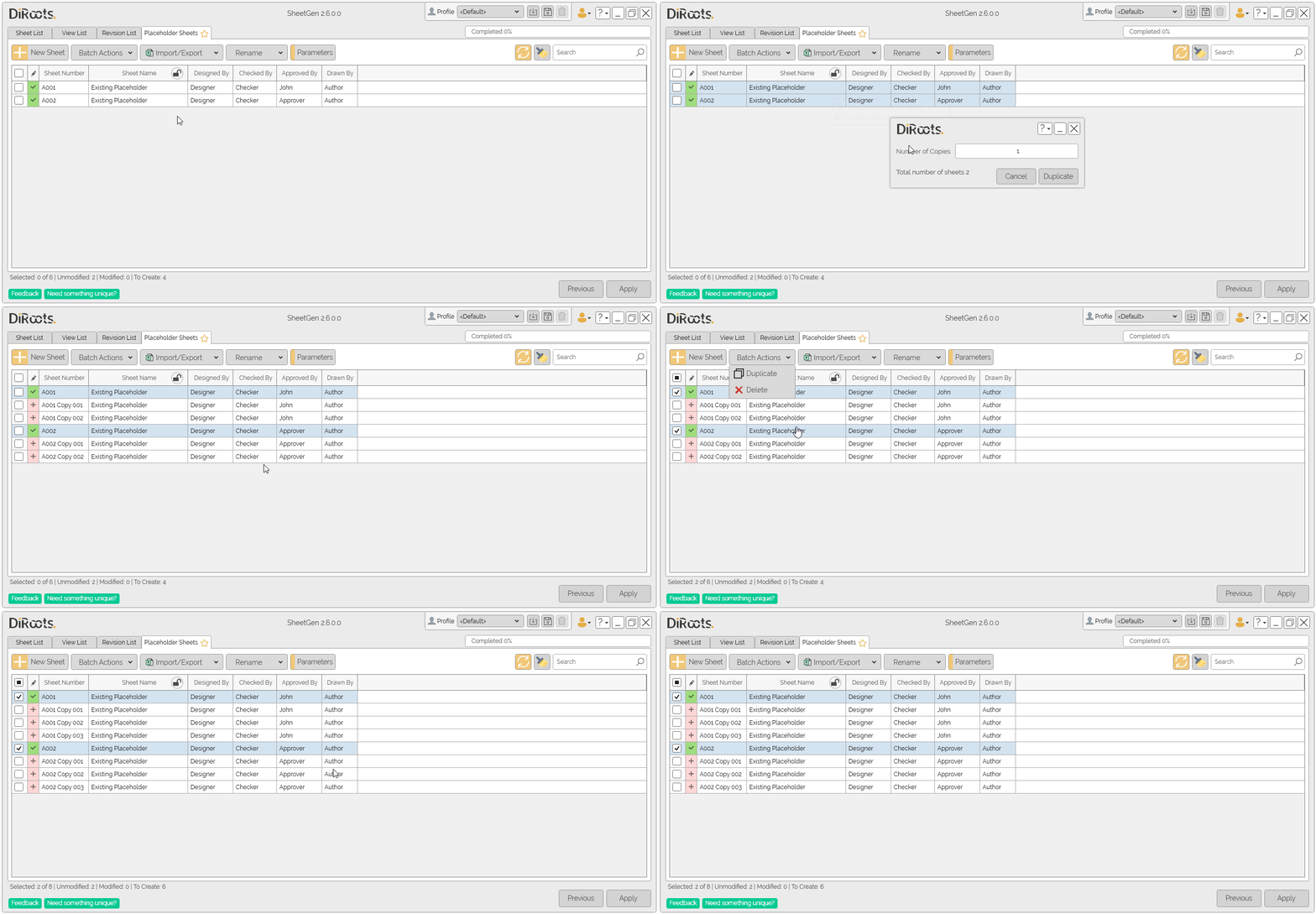
You can perform this action by right-clicking and choosing the Duplicate Placeholder Sheets option, or you can use the Batch Actions dropdown. To duplicate in batch, check the placeholder sheets you want, and in the Batch Actions list, choose Duplicate.
A window will give you the option to select a number of copies.
 Note: the version on the image may not reflect the latest version of SheetGen/DiRootsOne.
Delete Placeholder Sheets
You can perform this action by right-clicking and choosing the Delete Placeholder Sheets option, or you can use the Batch Actions dropdown. To delete in batch, check the placeholder sheets you want, and in the Batch Actions list, choose Delete.
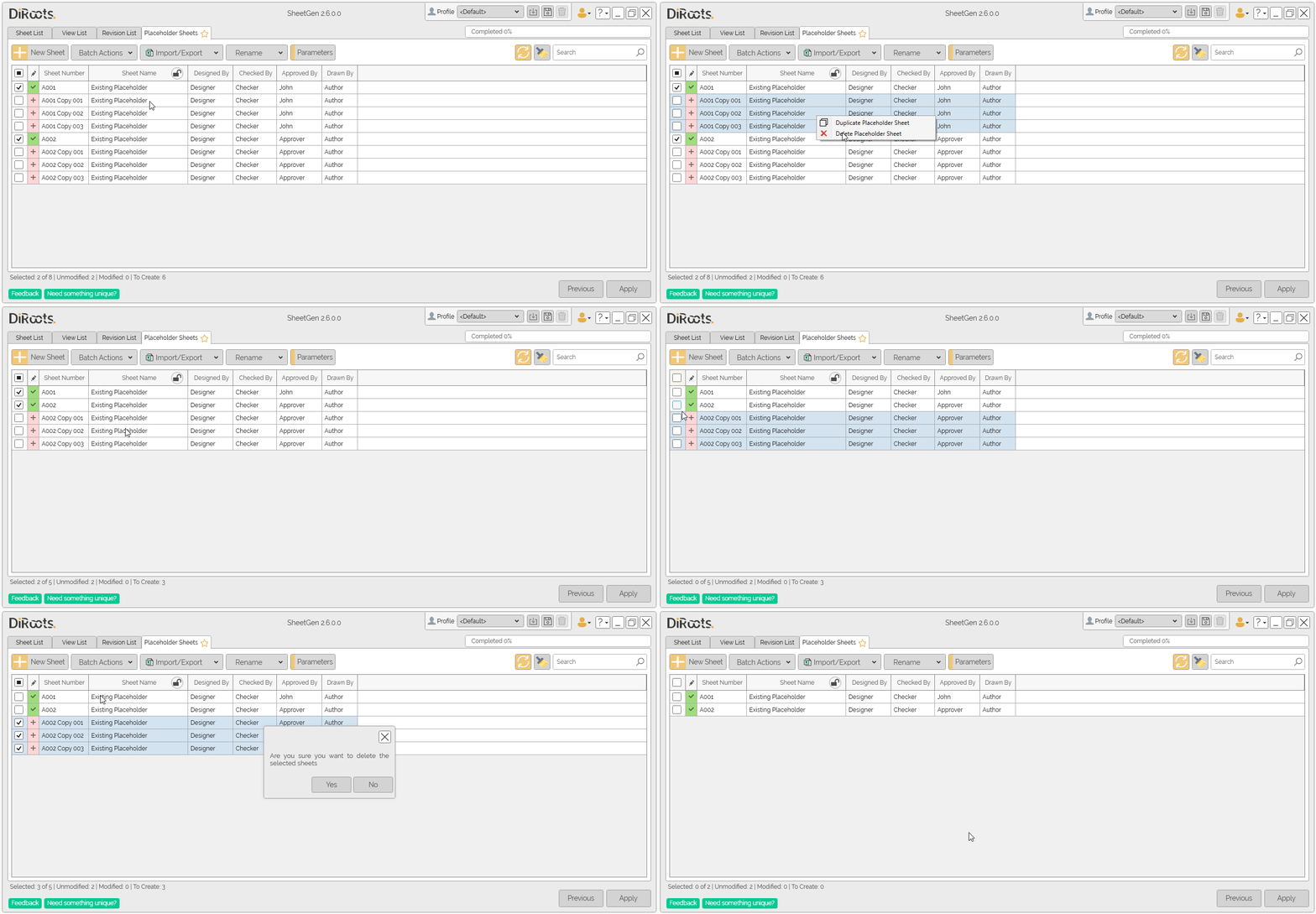 Note: the version on the image may not reflect the latest version of SheetGen/DiRootsOne.
Import/Export excel file
If you have many placeholder sheets that you want to create or edit, this workflow is much more streamlined. Export an Excel file, edit it as you want, then import it into SheetGen to quickly create placeholder sheets, or edit their names, numbers and parameters. Note that the Sheet Name header column has a lock icon, by activating this icon the column will be locked for any editing. In the exported Excel file you can edit numbering, naming, parameters, and also add new rows to create new placeholder sheets.
-
Export the excel file from sheet list.
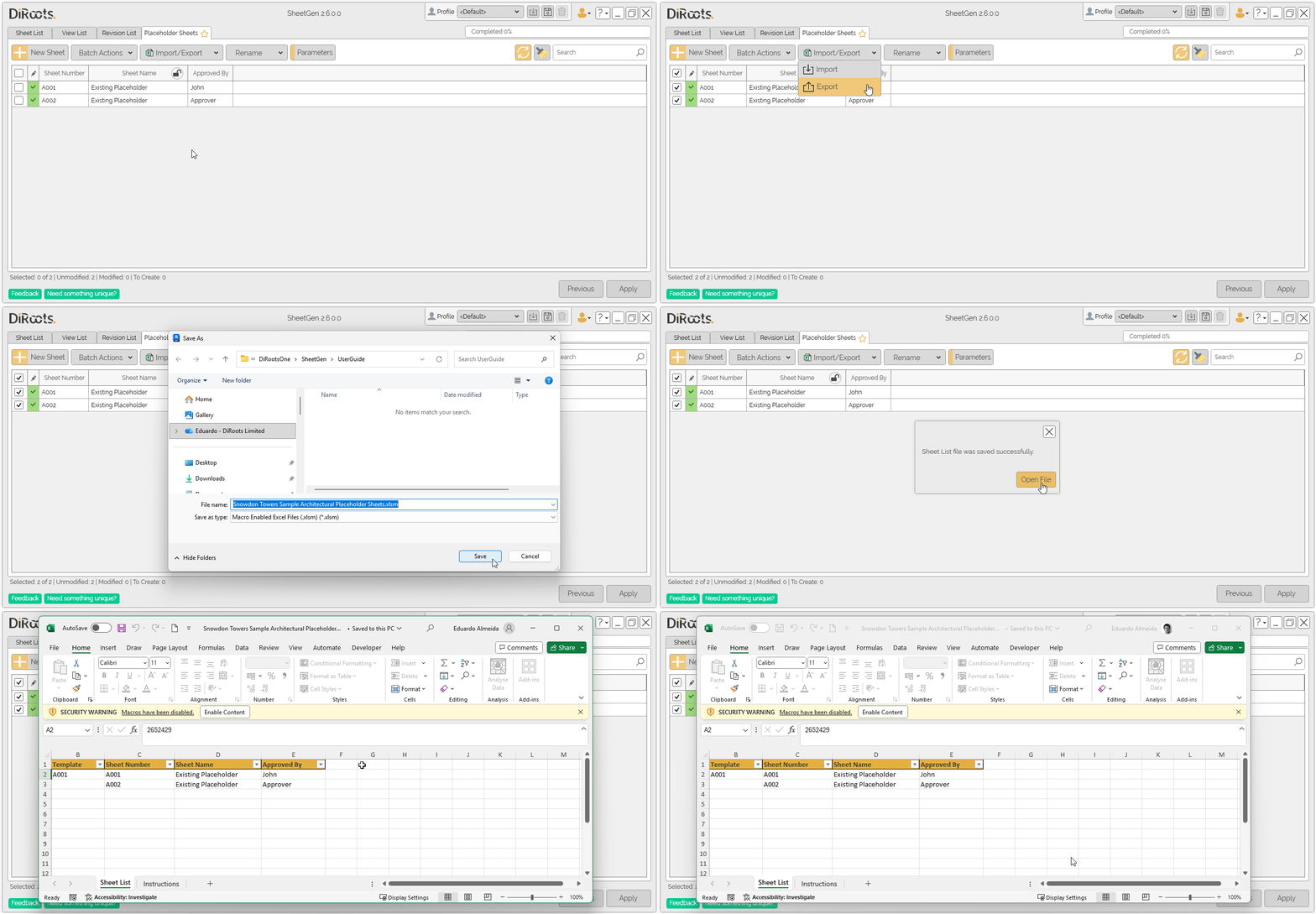 Note: the version on the image may not reflect the latest version of SheetGen/DiRootsOne.
 -
Once you have edited the Excel file, import it to SheetGen.
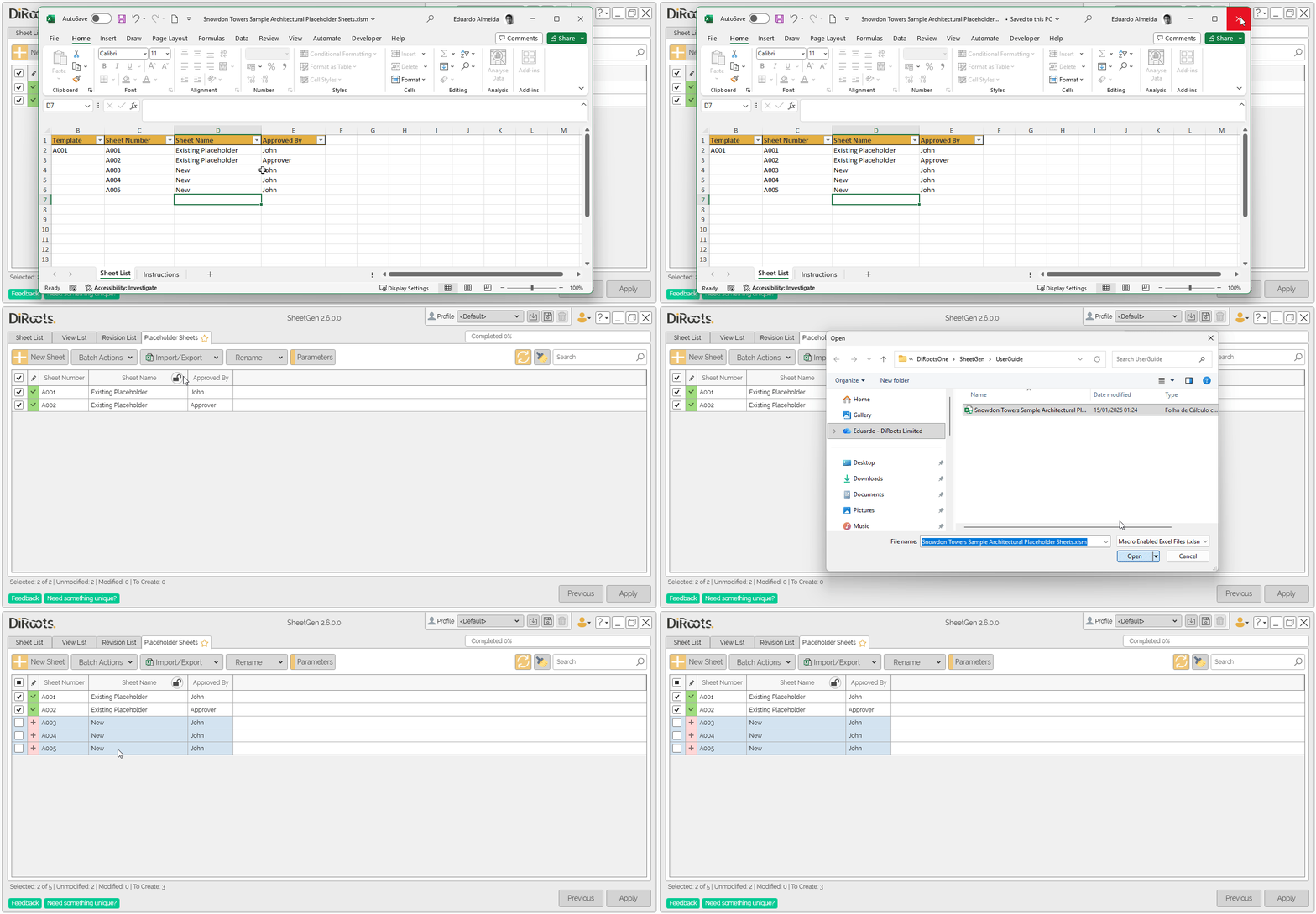 Note: the version on the image may not reflect the latest version of SheetGen/DiRootsOne.
Rename
This tool allows placeholder sheets to be renamed in batch. To do this, select the placeholder sheets you want and click Rename. Then define a Prefix, a Suffix, enter the name that will be replaced and finally the name that will replace it.
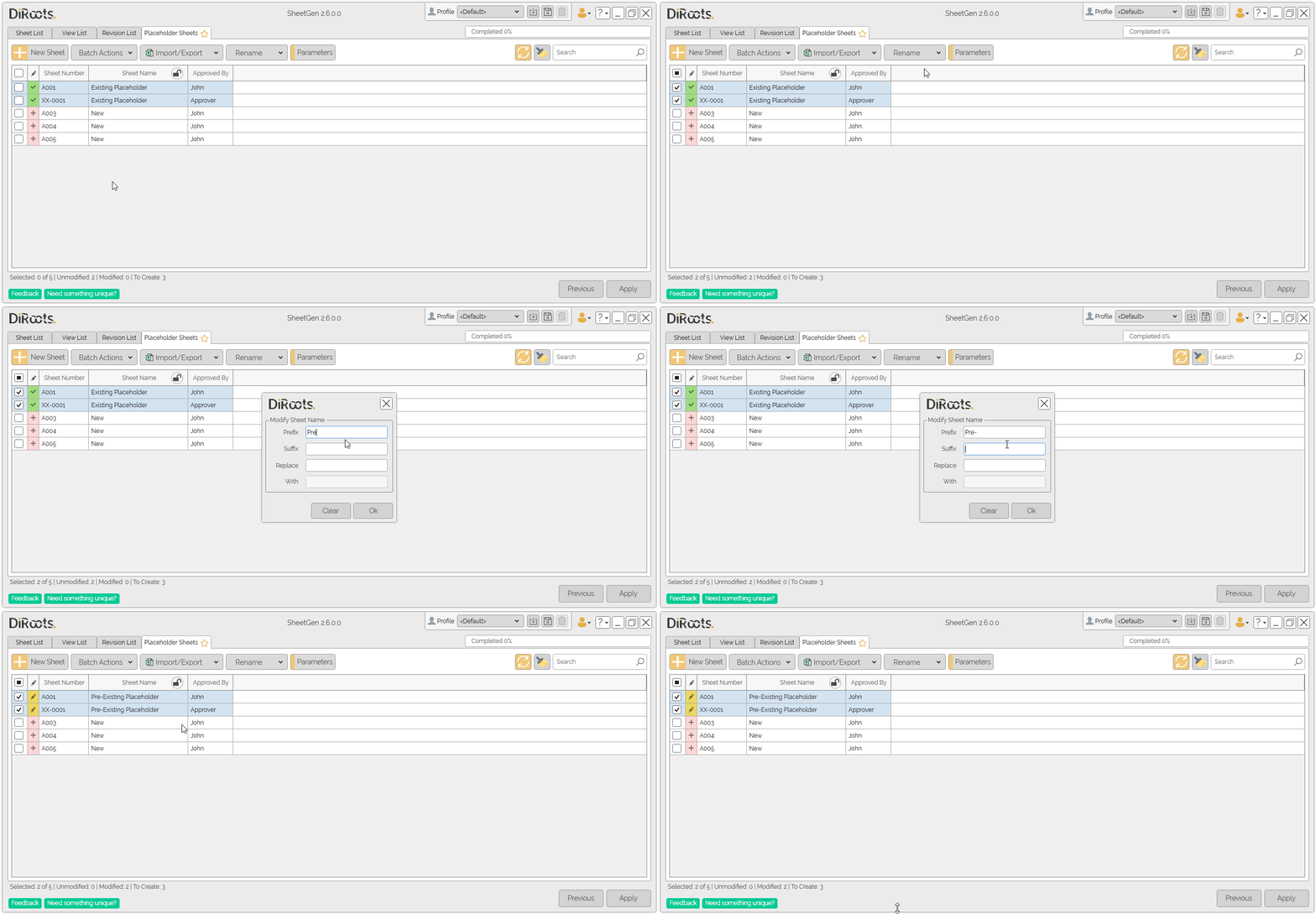 Note: the version on the image may not reflect the latest version of SheetGen/DiRootsOne.
Build Number and Build Name
-
Similar to the Rename tool, SheetGen has a Build Number. Select the placeholder sheets you want and click Build Number. Then set the Default Field Separator, Custom Field, Custom Separator, Counter and add or remove Parameters.
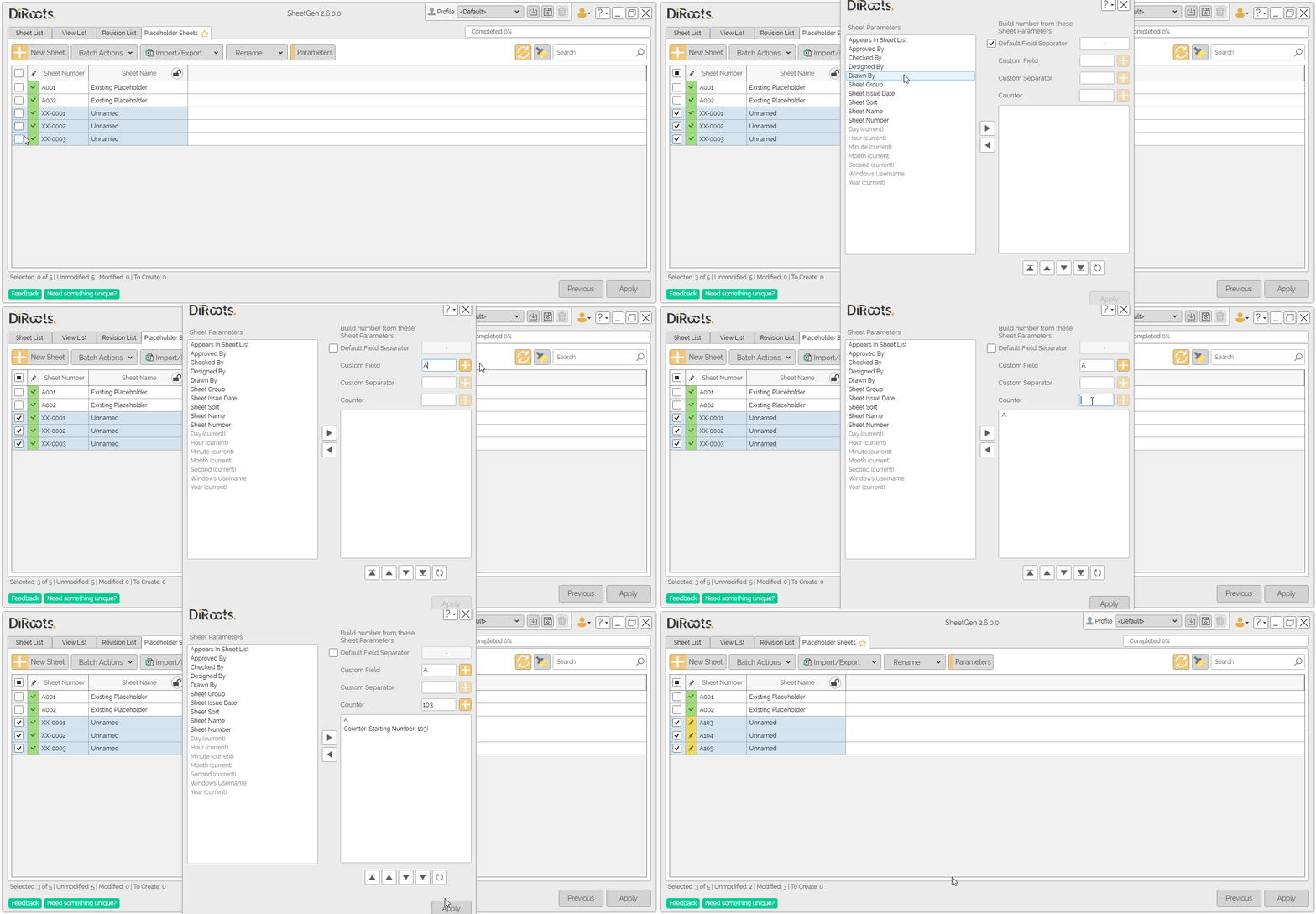
Note: the version on the image may not reflect the latest version of SheetGen/DiRootsOne.
-
For the Build Name tool, it is the same steps. Select the placeholder sheets you want and click Build Name. Then define the Default Field Separator, Custom Field, Custom Separator, and add or remove Parameters.
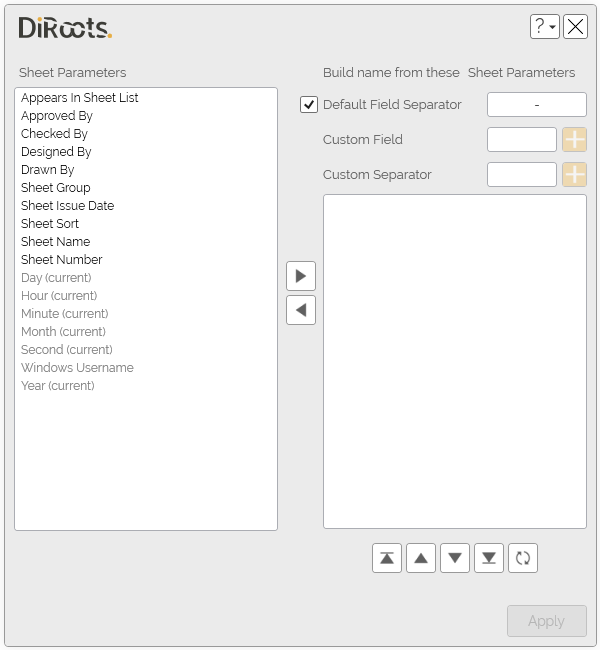
Note: the version on the image may not reflect the latest version of SheetGen/DiRootsOne.
Clear editions
-
Click the Clear all Modifications button, and reset all edition applied to the placeholder sheet names and numbers, in the table view by the Rename, Build Name or Build Number commands.
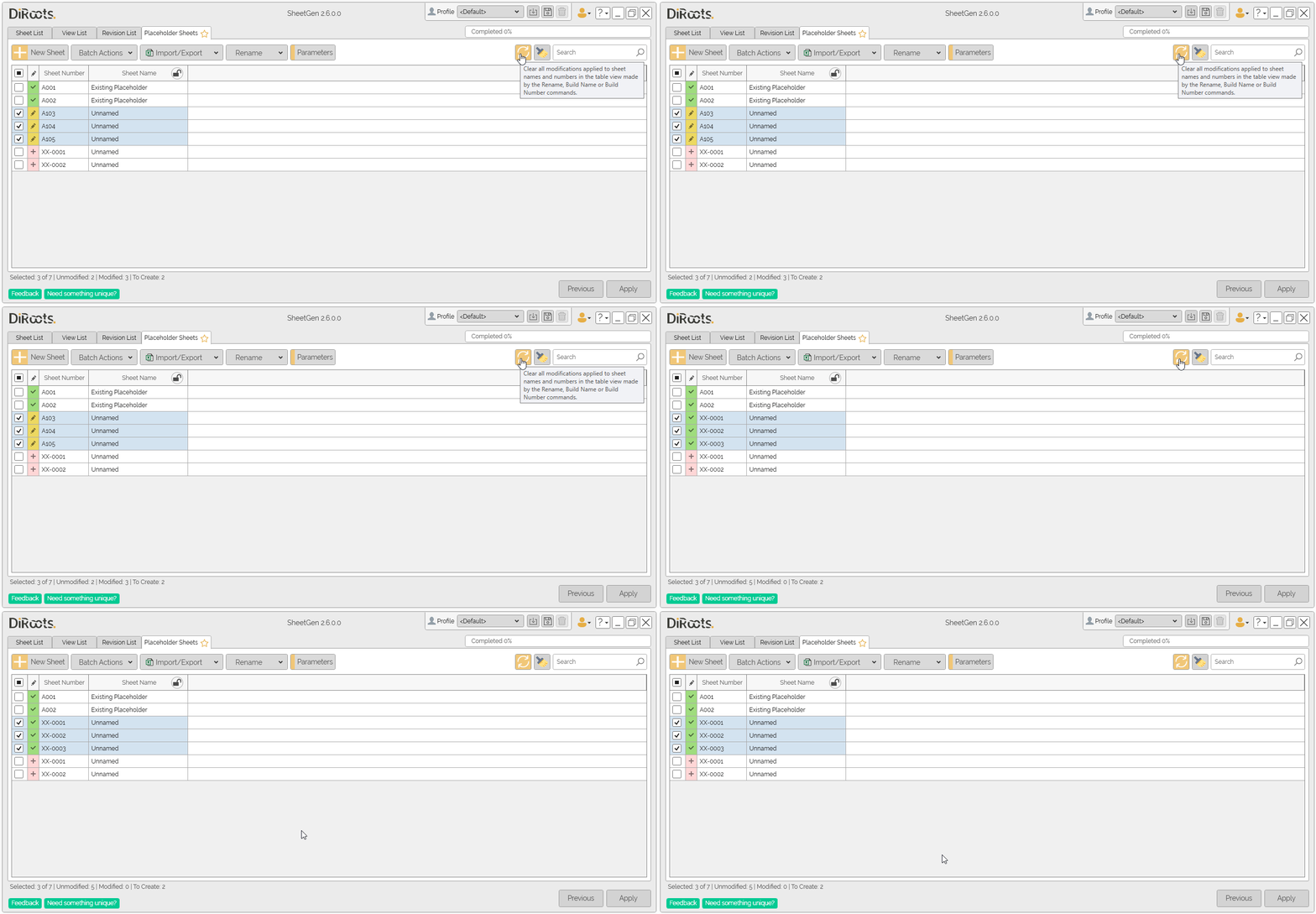 Note: the version on the image may not reflect the latest version of SheetGen/DiRootsOne.
 -
Click on the Clear Staging button, and clear the staging cached modifications.
# Note: With this tool, only changes that have not yet been applied will be cleared. Changes that have been applied cannot be cleared.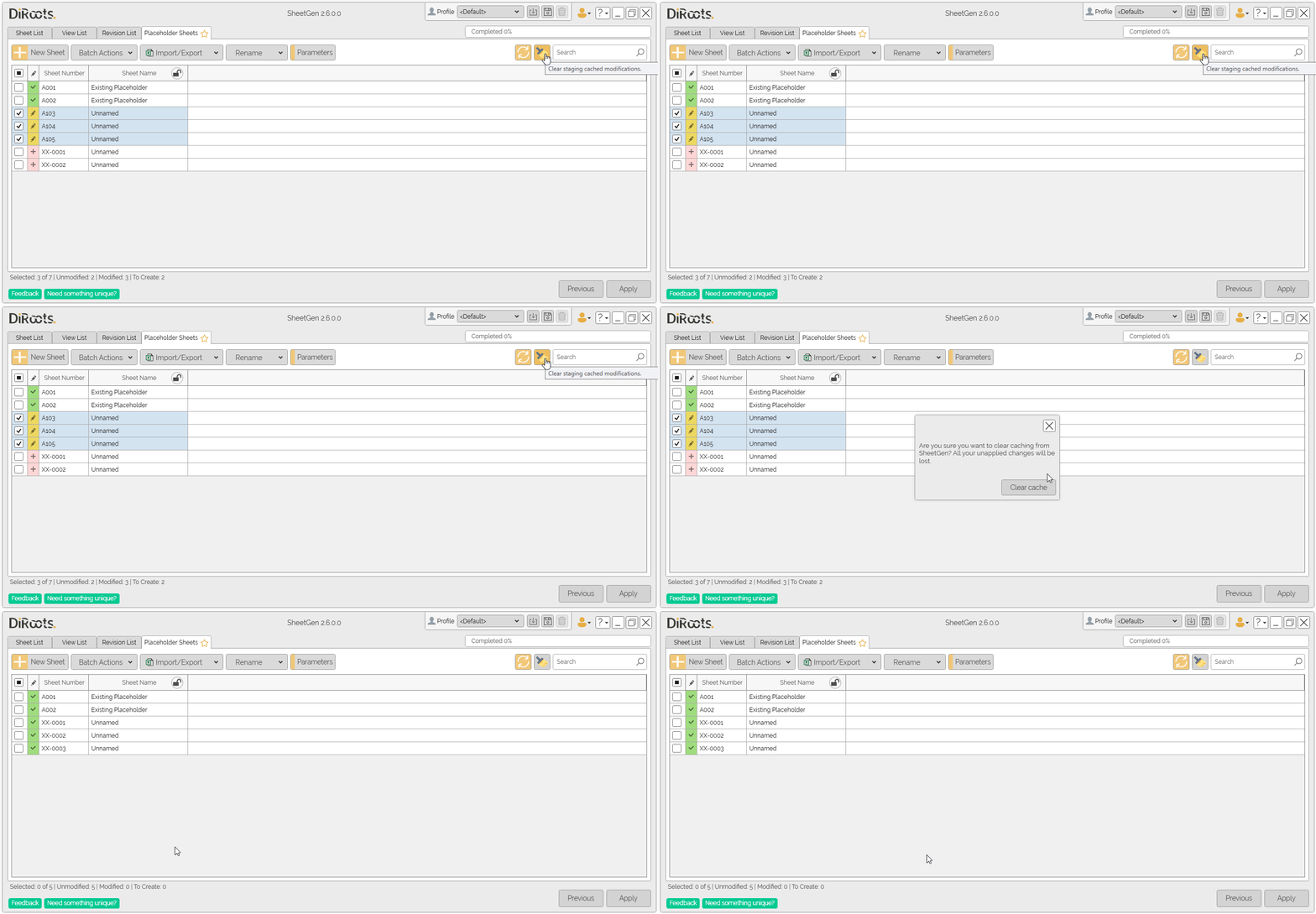 Note: the version on the image may not reflect the latest version of SheetGen/DiRootsOne.
Search
The search box allows you to find placeholder sheets in table by finding matches of the search text in the name, number and visible parameters.
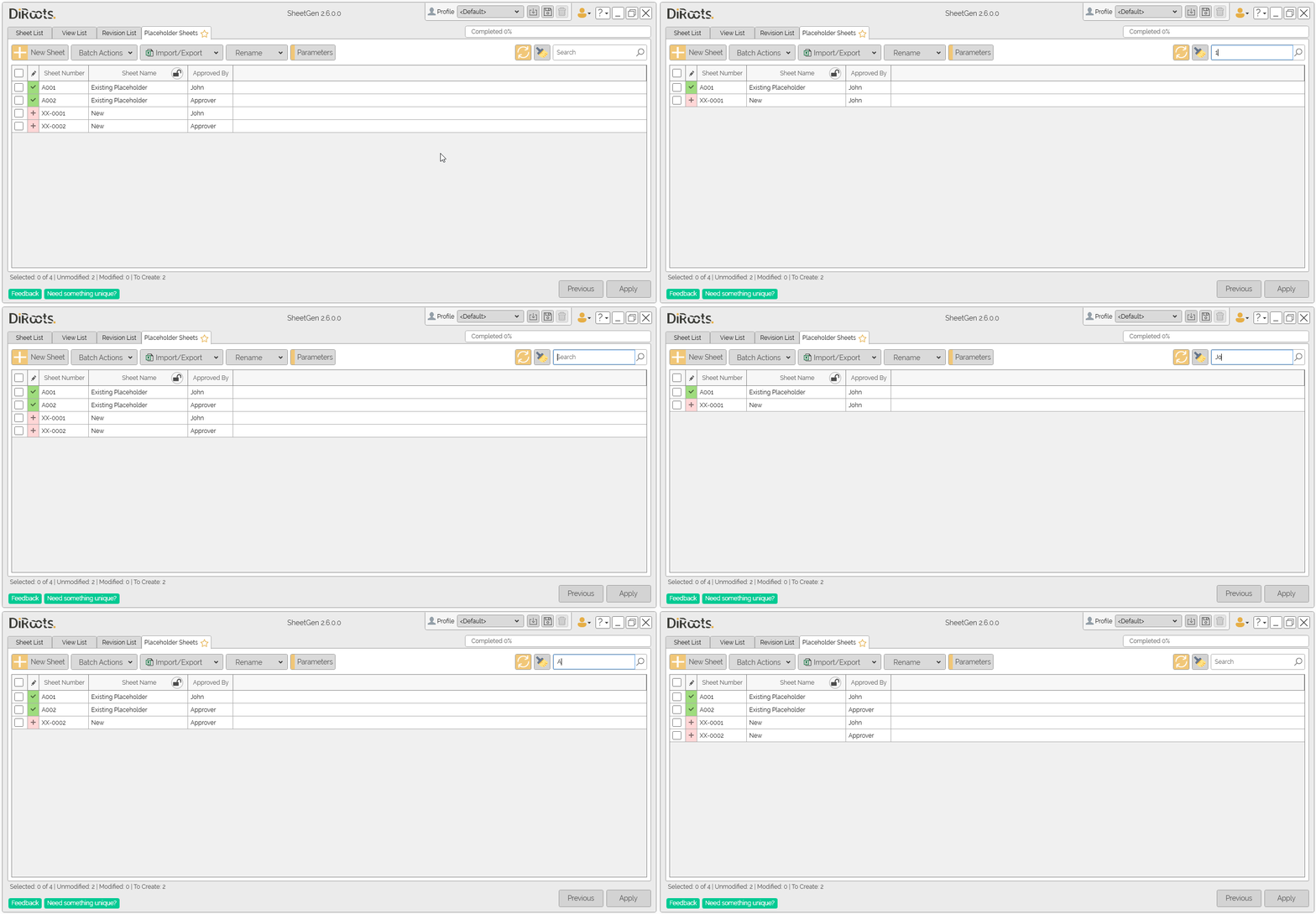 Note: the version on the image may not reflect the latest version of SheetGen/DiRootsOne.
If you want to find out more about SheetGen and explore detailed tutorials on how to use it, visit our YouTube channel. There, you’ll find a series of videos that can help answer questions and improve your knowledge. Be sure to check it out and subscribe to keep up to date with our news and tips!